As part of the Data Integration Platform (DIP) you will need to set up IDs for the various roles that will interact with the platform.
Links to all onboarding steps
- Step 1: Accessing DIP and verifying company details
- Step 2: Managing your company’s users within DIP
- Step 3: Managing your GlobalSign account as part of DIP
- Step 4: Managing DIP certificates
- Step 5: Domain verification
- Step 6: Creating a Signing/mTLS certificate
- Step 7: Managing your DIP / DCP IDs
- Step 8: Managing your DIP Message Channels
How to create a DIP ID
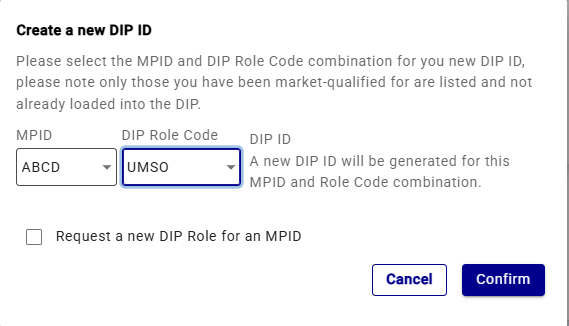
o create a DIP ID, go to the DIP ID tab. On the right-hand side there is a create New DIP ID option.

A drop-down menu will be presented showing the list of MPIDs and DIP role code available for market participants. This combination has been pre-loaded in, and is derived from the Market Participant MHHS qualification.
Click on confirm and a new DIP ID will be created.
How to request a DIP ID if MPID is not found
These steps must be completed by a Message Admin.
Go to DIP ID tab.
Click on ‘create New DIP ID ‘.
Tick the box to request a new DIP Role for an MPID. Enter your MPID, select the correct role and press confirm.
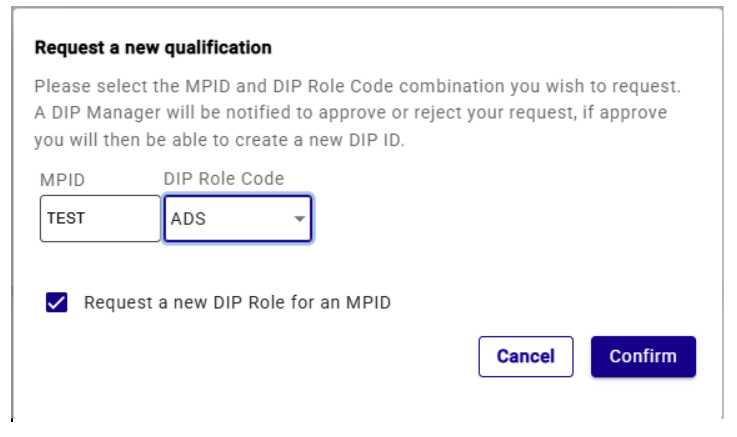
The DIP Manager will then conduct internal processes to validate the role code and MPID before allowing the DIP ID.
DIP ID set-up
Assigning company roles to a DCP
As a Market Participant Organisation using a DCP, you can assign a particular role to your chosen DCP. See all the DIP roles listed in the table further down this page.
To do this, the DCP must have:
- completed their onboarding in advance
- requested and approved DCP Status
- created and shared a DCP ID with you
This process needs to be repeated for each role you wish to use a DCP for, requiring a new DCP ID for each.
To assign roles to a DCP
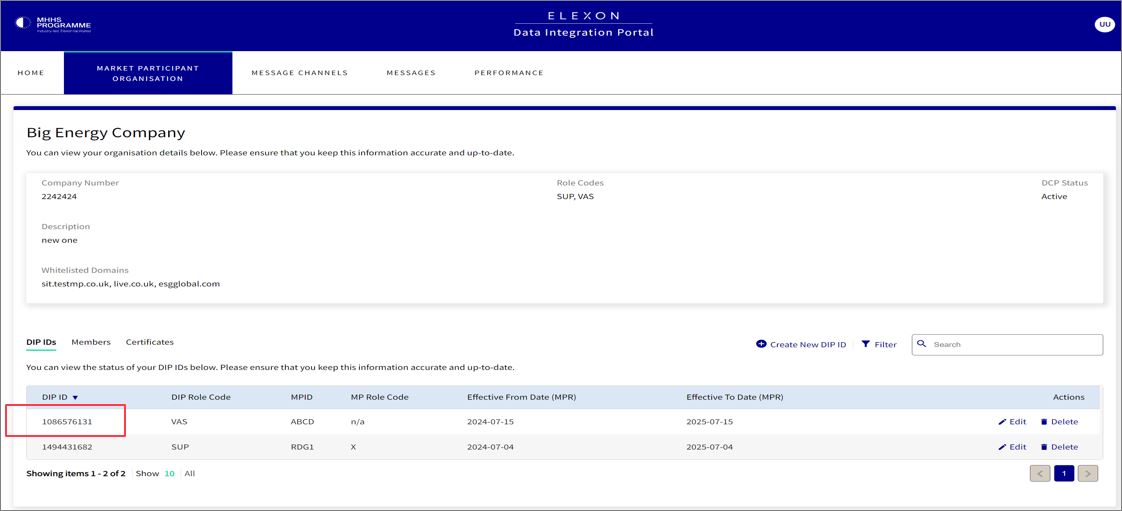
- Nominate DCP
- API Keys
- Add Member
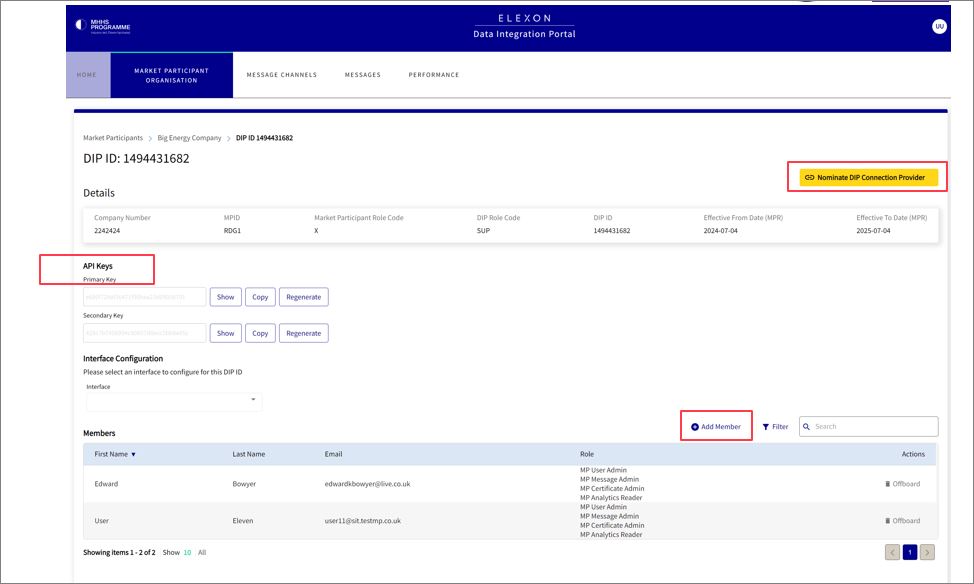
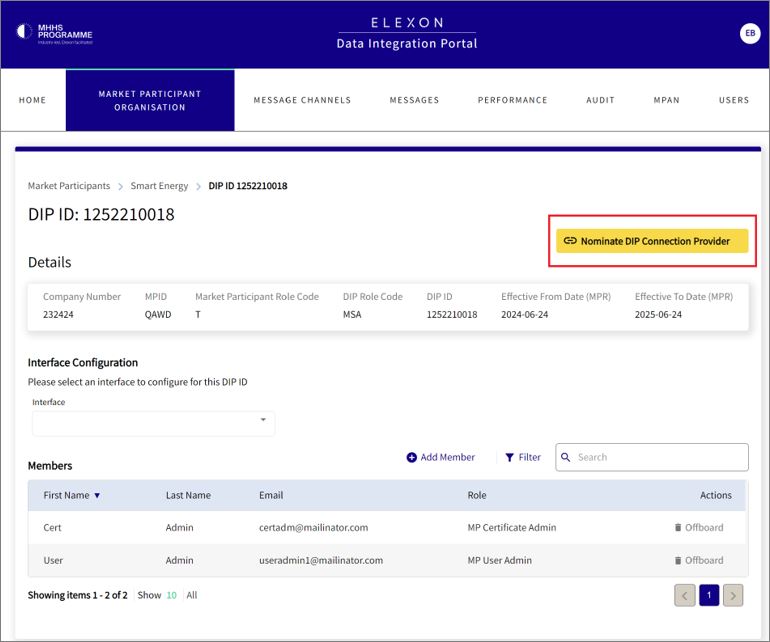
Identify the DIP ID you wish to nominate a DCP for and click it. This will take you to the DIP ID details view.
Click the ‘Nominate DIP Connection Provider’ button.
Your desired DCP should have already created a DCP ID in the portal and shared it with you. Select you desired DCP from the Market Participant field and then the DCP ID they have shared with you.
You must also tick the ‘Whitelist DCP’s domains’ if you intend to add DCP users as members of your organisation to allow them to perform administration tasks, for example create certificates or generate API Keys. Please note, if you do not see your desired DCP listed, please ask them to create a new DCP ID for you.
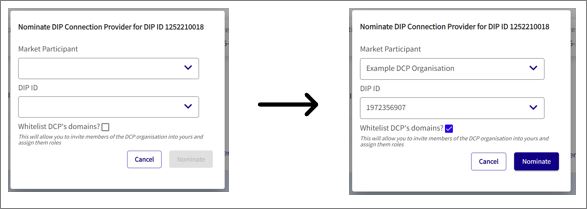
Once happy with the nomination details, click the nominate button.
Creating DCP IDs
To create a DCP ID, your organisation first needs to be registered as a DCP. This can be done at the start of the onboarding process by the Primary User Admin. However, if you did not select this or are a market participant and want to now add a DCP functionality, you can request this later.
When you open the Market Participant organisation header you should see a yellow highlighted box requesting DCP status.

If this step has been successful, the following pop-up should appear in the top right corner of the webpage.
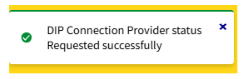
The DIP Manager team will need to approve your DCP status.
Once approved the DCP status will change to Active.
This will open up an additional tab next to the DIP ID tab called DCP IDs.
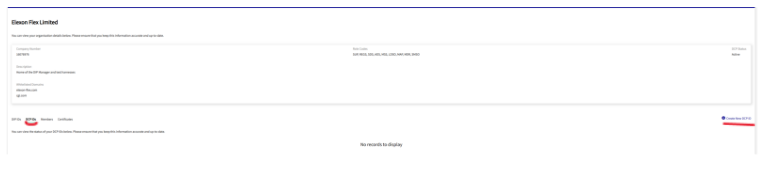
Press the DCP IDs tab and on the right side of the screen there will be a marked blue text called create new DCP ID. Select that.
A pop-up will appear asking you to confirm that you want to create a new DCP ID.
Select ‘Yes’. It will create a random DCP ID for your company. This will be unassigned.
Bulk DCP IDs
If you would like a bulk set of DCP IDs, please contact DIP Manager via Elexon Support.
DIP roles
This table gives a description of the diferent DIP roles.
| Role id | DIP active | Requestable role | Service name | Market segment / role | Market participant role |
|---|---|---|---|---|---|
| MSA | * | yes | Metering Service (Advanced) | Advanced Market Segment | T |
| ADS | * | yes | Advanced Data Service | Advanced Market Segment | O |
| MSS | * | Yes | Metering Service (Smart) | Smart and Traditional (non-smart) market Segments | S |
| MRS | Metering Reading Service | Smart and Traditional (non-smart) market Segments | 6 | ||
| SDS | * | yes | Smart Data Service | Smart and Traditional (non-smart) market Segments | N |
| SMSO | ¥ | yes | Smart Meter System Operator | Smart and Traditional (non-smart) market Segments | |
| MDR | $ | yes | Meter Data Retrieval Service | Smart and Traditional (non-smart) market Segments | |
| UMSO | * | yes | Unmetered Supplies Operator Service | Unmetered Supplies Market Segment | 3 |
| UMSDS | * | yes | Unmetered Supplies Data Service | Unmetered Supplies Market Segment | Q |
| MDS | * | Market-wide Data Service | BSC Central Services | n/a | |
| LSS | * | Load Shaping Service | BSC Central Services | n/a | |
| ISD | * | Industry Standing Data | BSC Central Services | n/a | |
| VAS | * | Volume Allocation Service | BSC Central Services | n/a | |
| REGS | * | yes | Registration Service | Registration | P |
| SUP | * | yes | Supplier | Supplier | X |
| MAP | ¥ | yes | Meter Asset Provider | Supplier | 8 |
| LDSO | * | yes | Licensed Distribution System Operator (IDNOs & DNOs) | Distribution Network Operator | R |
| EES | * | Electricity Enquiry Service | RECCo | L | |
Background for non-SIT LDSOs
Market Participant Data Setup
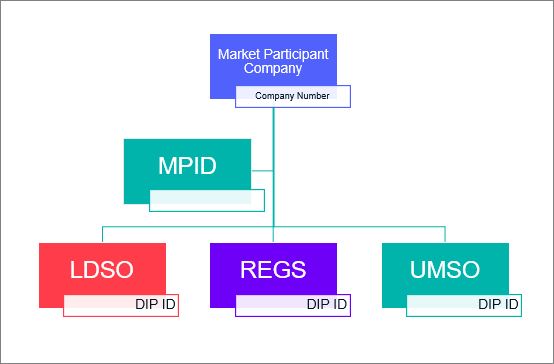
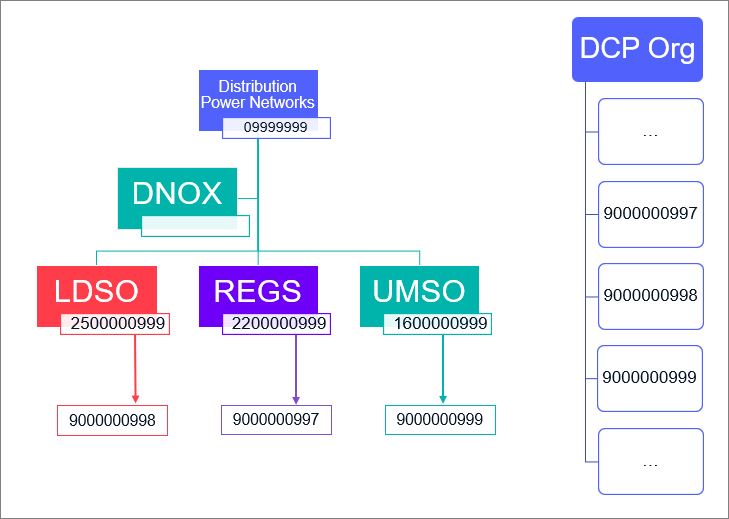
All the data required for on-SIT LDSO has been set-up in advance in terms of DIP IDs & DCP IDs.
Distribution Power Networks Company
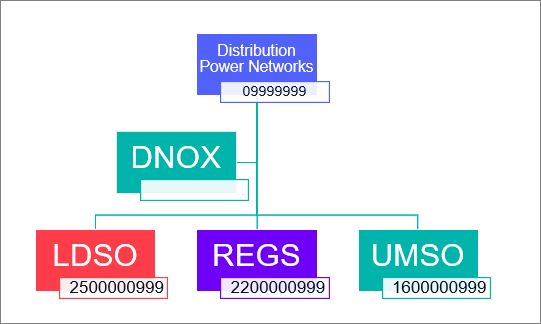
Market Participant Data Setup – include DCP setup
As a Market Participant Organisation using a DCP, you can assign a particular role to your chosen DCP.
To assign one of your company roles to a DCP, the DCP MUST already have:
- completed their onboarding in advance
- requested and approved DCP Status
- created and shared a DCP ID with you
This process needs to be repeated for each role you wish to use a DCP for, requiring a new DCP ID for each.
Example Distribution Company