This page explains how to set up DIP users for your company and how to make changes to user accounts.
Links to all onboarding steps
- Step 1: Accessing DIP and verifying company details
- Step 2: Managing your company’s users within DIP
- Step 3: Managing your GlobalSign account as part of DIP
- Step 4: Managing DIP certificates
- Step 5: Domain verification
- Step 6: Creating a Signing/mTLS certificate
- Step 7: Managing your DIP / DCP IDs
- Step 8: Managing your DIP Message Channels
Before you start
You will need:
- to have read and understand DIP user roles and tasks
- names and contact details of people you want to add as users
How many users do we need?
It is advised that each Market Participant has at least 2 User Admins, 2 Certificate Admins and 2 Message Admins to ensure cover is provided during any absence.
It is acceptable for one person to hold multiple roles. Please ensure you have cover for all potential access needs.
Setting up new users (for User Admins only)
This activity can only be done by a User Admin.
A Certificate Admin and a Message Admin will need to be created before any other users are added to the system. If these are already set up, you can proceed to creating additional users.
To add a user
Go to the Members tab in the Market Participation Organisation screen.
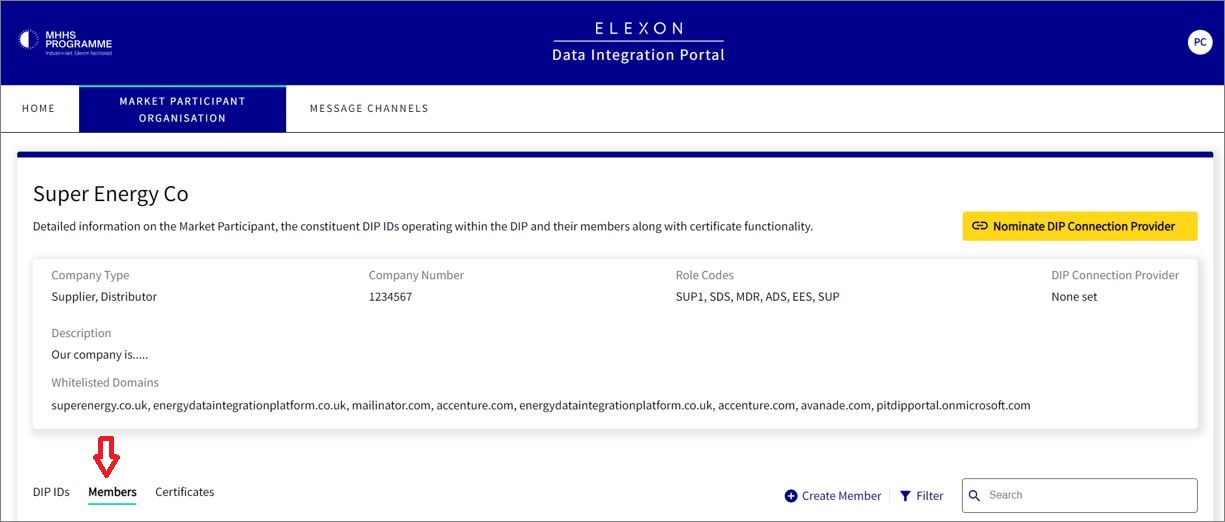
Create a Certificate Admin
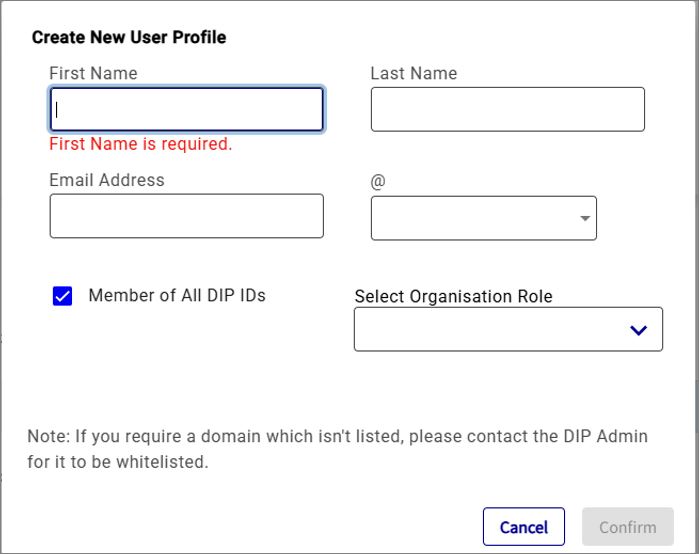
- Click on Create Member
- Enter the user’s first name, last name, and their email address
- Under ‘Select Organisation Role’, choose Certificate Admin and any other role(s) needed
- Click on Confirm
Create a Message Admin
- Click on Create Member
- Enter the user’s first name, last name, and their email address
- Under ‘Select Organisational Role’, choose Message Admin and any other roles(s) needed.
- You can limit the scope of the DIP ids the Message Admin has access to.
- Click on Confirm
Creating additional users
Once you have created a Certificate Admin and a Message Admin, you can add any other users required. The method is the same as above.
- Click on Create Member
- Enter the user’s first name, last name, and their email address
- Choose the relevant role(s) under ‘Select Organisational role’ and confirm.
Inviting users from outside your organisation
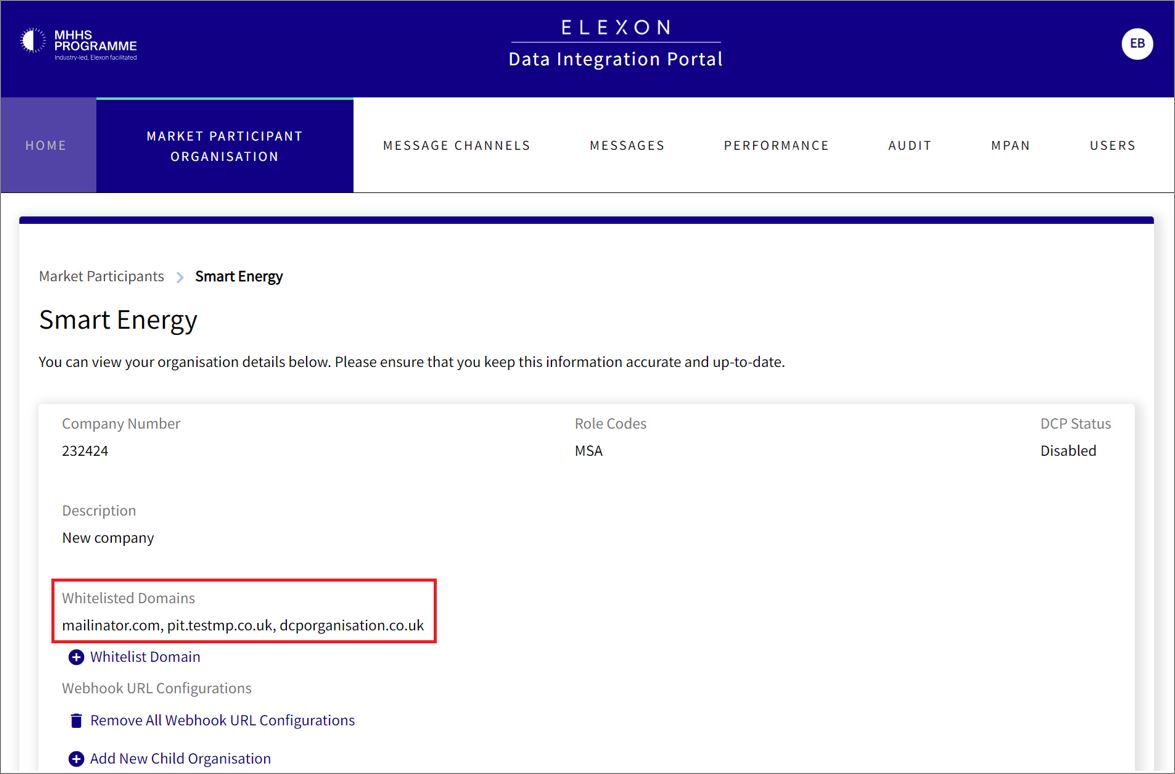
As a security measure, the User Admin can only add individuals from approved email domains. This refers to part of a company email address after the @ sign.
You can see a list of the approved domains in the Market Participant Organisation section under ‘Whitelisted domains’.
If you need to give access to an individual from a company whose domain is not shown, please create a ticket on Elexon Support requesting the domain to be added.
Once verifying the desired domain is present, navigate to the Member tab and follow the steps for creating an additional user.
Editing an existing user
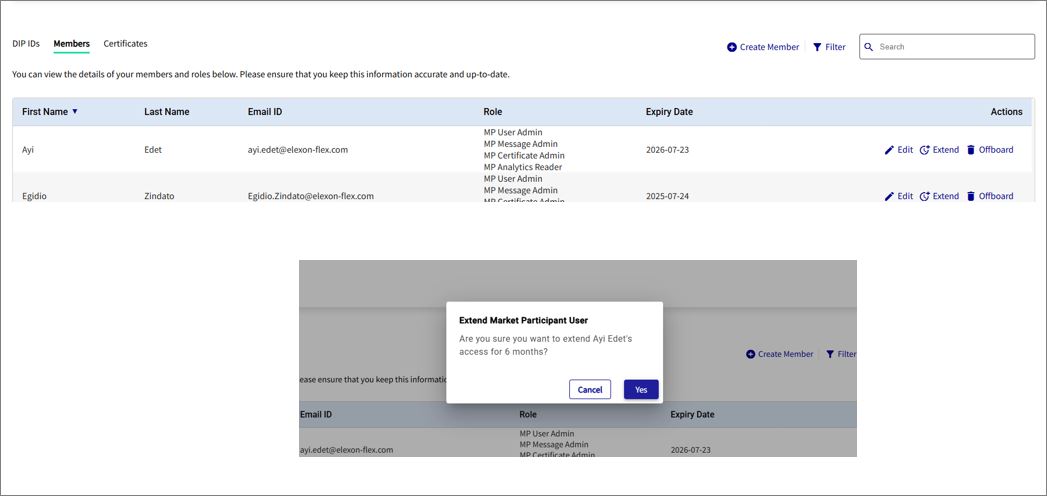
Click on the Edit option next to an existing Members’ role to amend the user details.

Extending user accounts
All users within a organisation have an expiry date. This is under the control of the User Admins within the home organisation. It is down to the discretion of each company’s User Admin how these end dates are managed.