Domain registration is used by the DIP to check that messages are being sent from the right address.
Follow the instructions below. To understand more about how this step works and why it is needed, see DIP vetting and validation explained.
Links to all onboarding steps
- Step 1: Accessing DIP and verifying company details
- Step 2: Managing your company’s users within DIP
- Step 3: Managing your GlobalSign account as part of DIP
- Step 4: Managing DIP certificates
- Step 5: Domain verification
- Step 6: Creating a Signing/mTLS certificate
- Step 7: Managing your DIP / DCP IDs
- Step 8: Managing your DIP Message Channels
Register and validate your company domain
The Domain Name Server (DNS) is validated as part of the certificate verification step and therefore must be managed by the Market Participant. The DNS can be the Market Participant’s web domain or any other domain associated with the organisation.
The Certificate Admin will need to work with a DNS Admin to complete the domain verification step.
To register and verify a domain
Log in to the DIP.
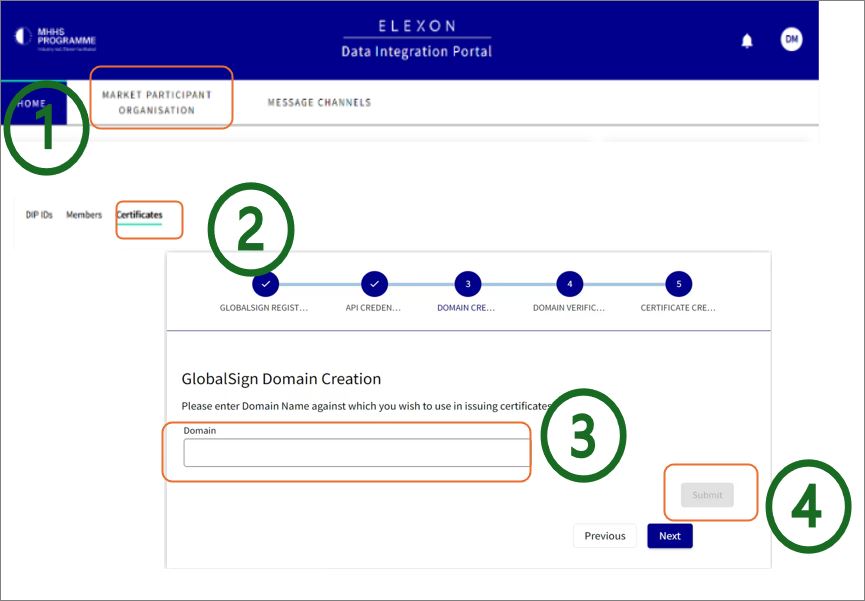
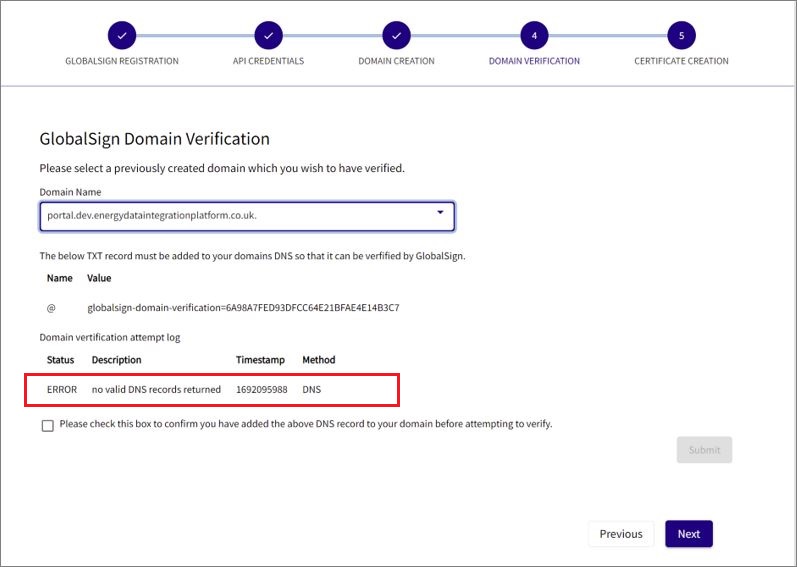
Go to the Certificates tab. In the DOMAIN field, enter the Market Participant’s domain name that is being used for GlobalSign verification and submit.
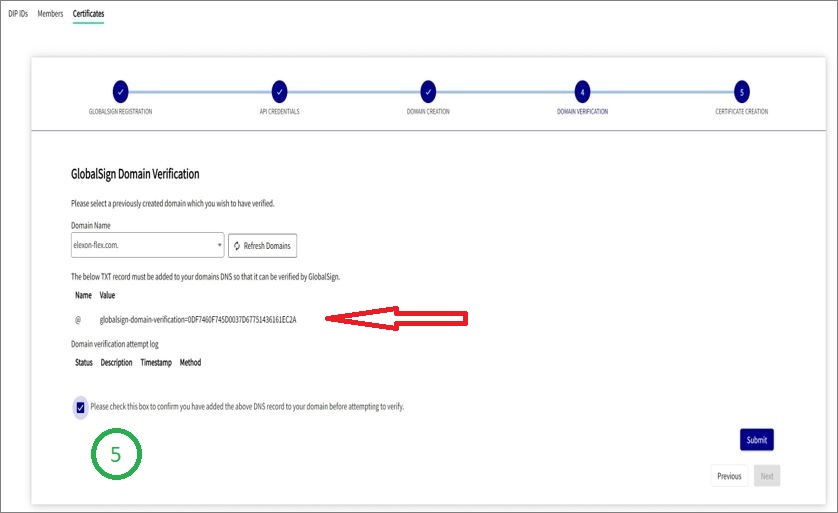
The next screen will ask you to reselect the DOMAIN Name from the dropdown and a TXT Record will appear.
Please note that a full stop (.) may appear after the Domain Name – this is not an issue and you should proceed.
Take note of the ‘Name’ = ‘@’ and VALUE details as this is a ‘txt’ and pass both parts of the information to DNS Admin for them to add into the DNS before proceeding.
The DNS Admin should add the record details into the DNS with the values specified = ‘@’ and the txt into VALUE.
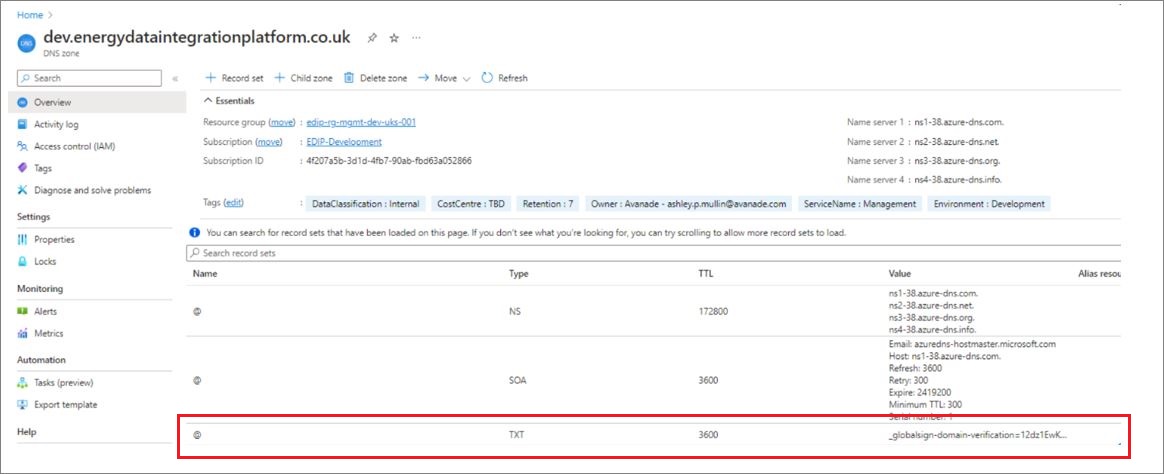
Confirmation that the DNS record has been added can take up to 1hr.
When confirmation is received, the Certificate Admin will need to check the box to confirm the DNS record has been added, and then click on SUBMIT.
The Certificate Admin can check if the verification has been successful.
If successful, click ‘Next’. If the Domain Validation is successful, this DNS entry should not be removed as it is used for renewals.
If an error is displayed, please seek assistance from the DIP manager via Elexon Support.
If you verified a domain in SIT or UIT
If an organisation has verified its domain in a previous environment such as SIT or UIT, the verification is valid for 1 year. If this is the case, the domain details will already appear here. You can select ‘Next’ on the Domain Creation screen and the domain created will be displayed under the Domain Verification screen as already verified.
Renewing domain verification through GlobalSign Atlas portal
From the GlobalSign Atlas portal, you will need to press Domains on the left-hand side which will open the previously vetted Domains. Select the domain, and on the right-hand side there is a renew domain button.
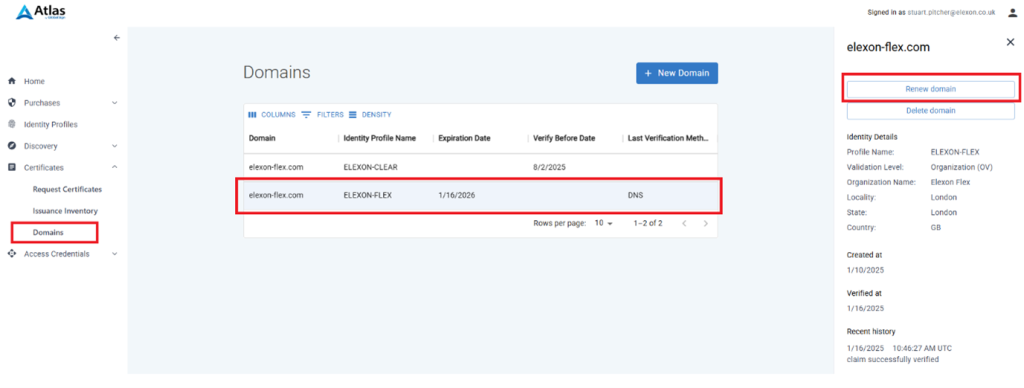
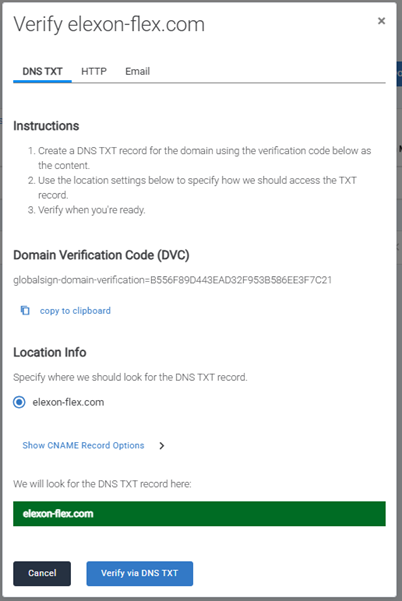
A pop-up window will appear. Select the DNS TXT method. Ask your DNS admin to add the Domain Verification Code into your DNS record. Press verify via DNS TXT.